
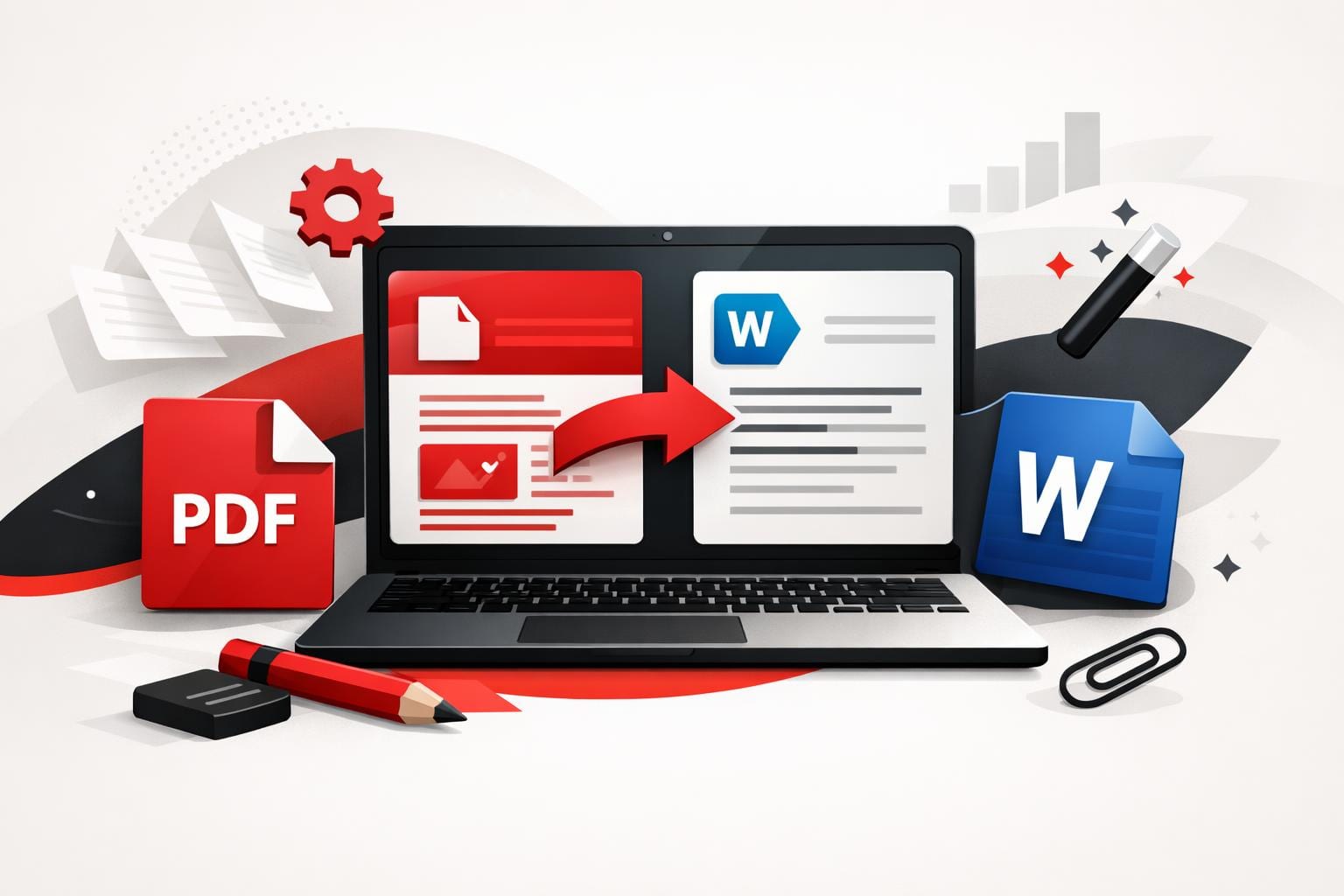
To convert a PDF into an editable Word document, upload it to a converter, choose standard conversion for selectable text or OCR for scanned pages, then download the DOCX and edit it in Word. iLovePDF provides this workflow in the browser, plus desktop and mobile apps when a web tab is not the best place to process documents.
Why PDFs resist edits in the first place
PDF is designed to display consistently, not to behave like a living document. A typical PDF page is closer to a finished layout than a Word file, text can be positioned as individual blocks, and lines can be split in ways that make perfect visual sense while being awkward to edit.
A PDF to Word converter rebuilds that layout into paragraphs, tables, and images that Word understands. The goal is practical editing, not pixel perfect reconstruction, so complex pages with columns, footnotes, and mixed fonts require a better conversion engine and cleaner input.
How to tell when OCR is necessary
The fastest way to pick the right conversion mode is to test the PDF, not to guess. Open the file in any PDF viewer and try to highlight a sentence.
- Decision rule If text highlights cleanly, use standard conversion, if the page behaves like a single image, use OCR.
OCR, short for Optical Character Recognition, turns text inside images into machine readable characters, so the result can be searched and edited. A plain language overview is available at Optical character recognition.
iLovePDF surfaces this choice directly inside its PDF to WORD tool, offering a non OCR option for selectable text and an OCR option marked as Premium for scanned pages, and the page notes that the converter is powered by Solid Documents.
| Conversion route | Best fit | Scanned pages | Internet required | Typical plan |
|---|---|---|---|---|
| Web standard | Digital PDFs with selectable text | No | Yes | Often available on free tiers with limits |
| Web with OCR | Scans, photos, non selectable text | Yes | Yes | Usually a paid feature |
| Desktop app | Large files, restricted networks, privacy focused workflows | Depends on feature access | No for offline processing | Free reader, paid tools optional |
| Mobile app | Quick conversions, signing, and document chores on a phone | Depends on feature access | Often yes | App plus subscription options |
A simple mental model helps keep choices consistent across tools. Use the SFP checklist, source type, formatting sensitivity, and privacy needs, then pick the route that optimizes the constraint that matters most.
A quick web conversion that keeps structure
For most people, browser conversion is the shortest path from locked PDF to editable DOCX. The iLovePDF flow is built around one action, upload, convert, download, with optional cloud imports.
Standard conversion for selectable text
- Open the PDF to WORD tool.
- Upload a file, drag and drop works, and the tool also supports importing from Google Drive and Dropbox.
- Leave the mode set to non OCR conversion.
- Run the conversion and download the resulting Word file.
OCR conversion for scanned PDFs
- Upload the PDF as usual.
- Switch the conversion mode to OCR if the tool flags scanned pages.
- Convert, then open the DOCX in Word and proofread key fields like names, dates, and amounts.
The practical payoff is not just editability. A good converter also preserves enough of the original layout to avoid rebuilding headings, spacing, and inline images by hand.
How to get readable results from scans
OCR is only as good as the pixels it receives. If the scan is fuzzy, skewed, or covered with handwriting, the converter must guess, and guesses show up as misspellings, broken words, and strange spacing.
- Keep scans sharp High contrast pages with straight lines produce cleaner text.
- Reduce visual noise Stamps, scribbles, and heavy highlights can be mistaken for characters.
- Set the right languages iLovePDF’s OCR PDF tool notes that selecting the document language improves detection accuracy.
Concrete example A property manager receives a scanned lease agreement that needs a corrected tenant name and an updated address. Running OCR conversion first turns the scan into editable text, then Word can be used to update the fields and send an updated DOCX to legal for review instead of retyping the entire contract.
When desktop and mobile beat the browser
Browser tools are convenient, but they are not always the best fit for heavy, repetitive, or connectivity constrained work. That is where installed apps matter.
The iLovePDF Desktop app is positioned for offline processing and local handling of files, which helps when internet access is unreliable or when documents are too large to comfortably manage in a single web session. It also centralizes bulk style work, like running the same operation across many files.
The iLovePDF Mobile app targets the opposite scenario, quick turnaround on a phone or tablet. It bundles common document tasks, including conversions and signing, for people who need to move paperwork forward away from a computer.
Limits, plans, and what happens to files
Most online converters separate light use from high volume use. iLovePDF’s pricing page describes a free Basic tier with limited processing, and paid plans that expand access across web, mobile, and desktop, plus higher capacity and Premium only features such as OCR where indicated by the tool.
File safety is the other half of the decision, especially for contracts, HR documents, and financial records. According to iLovePDF’s Security and Data Protection documentation, files are encrypted during processing, and processed files are automatically deleted within two hours, with additional controls such as manual deletion and optional account protections like two factor authentication.
For sensitive work, the safest habit is procedural. Convert only what needs editing, remove personal identifiers when possible, and prefer offline processing routes when policy requires keeping documents on a local machine.
Fast answers to common conversion questions
- Why convert to Word at all Word is built for editing, PDFs are built for stable sharing, conversion bridges that gap for resumes, reports, and forms.
- Will the layout match perfectly Simple PDFs convert cleanly, dense layouts may need light touch up in Word, especially around columns and tables.
- Can scanned PDFs become editable Yes, but only with OCR, which turns the scan into text, then the result should be proofread.
- How to convert multiple files faster Look for bulk or batch workflows in paid plans, and use the desktop app when many documents must be processed consistently.
- Can the same tool work on a phone Yes, iLovePDF offers a mobile app for iOS and Android.
- How to keep accuracy high Use the decision rule, choose OCR only for scans, and set the correct language when OCR is involved.