
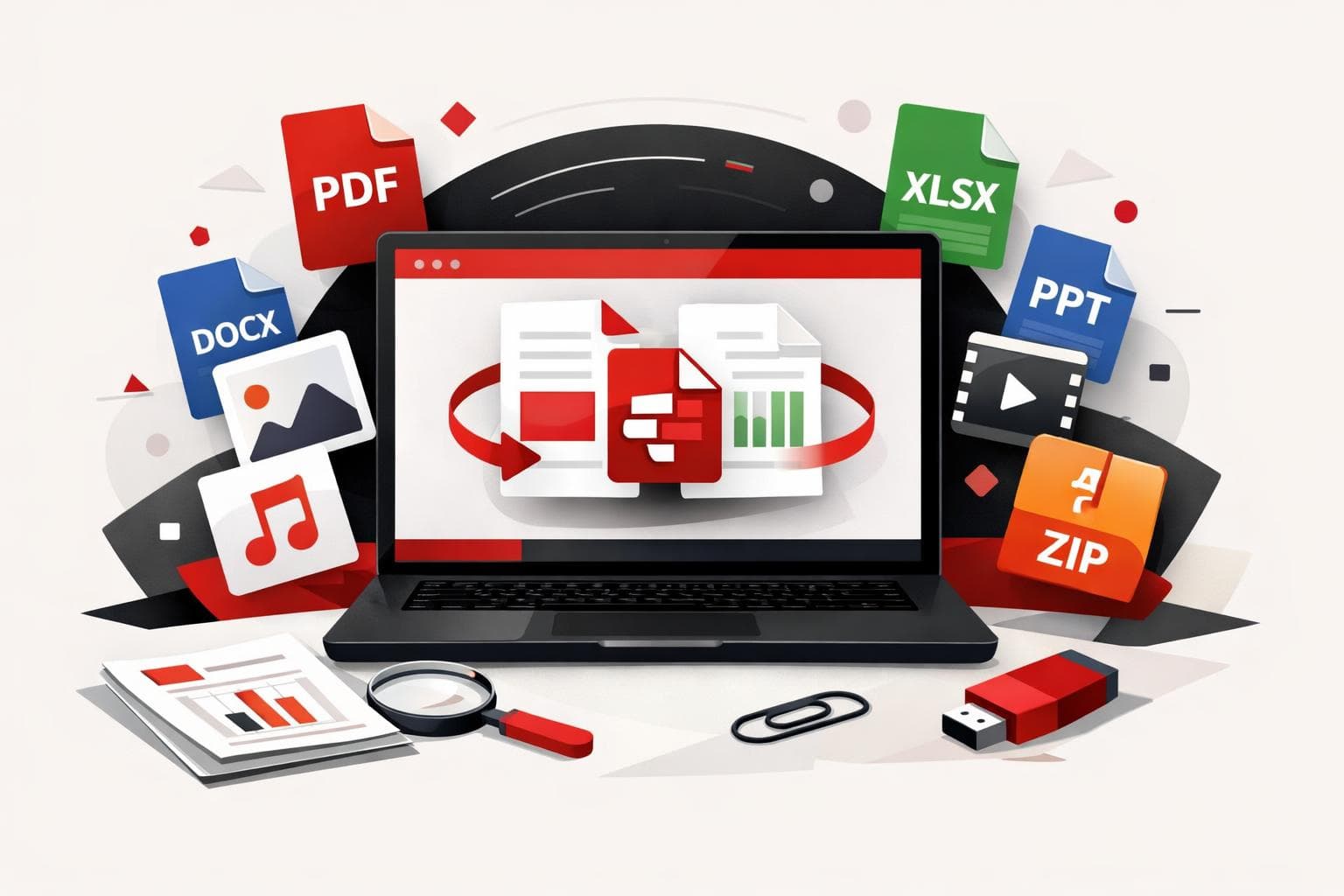
iLovePDF Desktop can now combine Word, Excel, PowerPoint, images, and PDFs into a single PDF in one run, because the app converts non-PDF files automatically during the merge. The change, announced on May 15, 2026, targets everyday mixed-file bundles where manual pre-conversion used to waste time and create version mistakes.
Automatic conversion inside the merge
Earlier versions of the desktop Merge tool only accepted PDFs, everything else required a separate conversion step first. The updated Merge tool accepts common Office files and images directly, then converts them as part of the merge, while keeping the output as one PDF.
For the original announcement and product framing, see Merge any file type with iLovePDF Desktop and the product page for iLovePDF Desktop.
| Workflow detail | Before the upgrade | After the upgrade |
|---|---|---|
| Accepted inputs | PDF only | PDF plus Office formats and images |
| Typical steps | Convert, then merge | Merge once, conversion happens during processing |
| Error risk | Higher, multiple intermediate files and “final-final” versions | Lower, fewer handoffs and fewer saved copies |
| Best fit | Already standardized PDF sets | Mixed-format packs, proposals, board decks, scans |
Supported file types for mixed merges
The new input list covers the formats most likely to arrive from clients, colleagues, scanners, and design teams. It also includes OpenDocument files, which reduces friction for LibreOffice or OpenOffice workflows.
- PDF and vector: .pdf, .ai
- Images: .jpg, .jpeg, .png, .tif, .tiff, .jpe, .jfif, .jfi, .jif, .bmp, .gif, .svg, .webp
- Word formats: .doc, .docx, .dot, .dotx, .dotm, .docm, .odt
- PowerPoint formats: .ppt, .pptx, .pps, .ppsx, .pot, .potx, .potm, .ppsm, .pptm, .odp
- Excel formats: .xls, .xlsx, .xlsm, .xlt, .xltx, .xltm, .ods
How merging works on desktop
The interaction stays familiar, the input gate is what changed. Add files in the order that should become pages, then run a single merge.
- Open the desktop app on Windows or Mac and select the Merge tool.
- Drag files into the workspace, mix formats freely, and reorder them.
- Run the merge, the app converts non-PDF items automatically and produces one PDF.
Practical example: a sales manager can place a .docx cover letter first, follow with a .xlsx pricing sheet, then a .pptx slide deck, then insert .jpg photos from a site visit, the result becomes one client-ready PDF with a predictable sequence.
When this feature matters most
This update delivers the biggest payoff in jobs where “one PDF” is the required handoff format but the source material is messy. Legal, finance, and marketing teams often assemble deliverables from multiple owners, multiple file formats, and multiple last-minute edits.
- Client proposals: narrative in Word, pricing in Excel, proof points in PDF, images from screenshots.
- Monthly packs: spreadsheets, exported reports, and scanned receipts combined into one archive file.
- Onboarding records: forms, ID scans, and signed PDFs grouped into a single document.
- Academic submissions: chapters, diagrams, and supplemental scans consolidated for upload.
Decision rule: when a bundle includes two or more source formats, or when the documents include confidential client or employee data, prefer a desktop merge to minimize extra conversions and reduce unnecessary file duplication.
A useful way to evaluate PDF tooling in 2026 is the Coverage Control Containment model:
- Coverage: how many real-world formats can enter the workflow without workarounds.
- Control: how reliably the output preserves layout and ordering.
- Containment: where processing happens, locally or via uploads, and what that implies for policy.
Local processing and what it changes
According to iLovePDF, the desktop app processes files on the machine, which can simplify internal handling for sensitive packs that teams prefer not to upload. For web-based tools, iLovePDF describes encryption and limited retention policies in its help and security materials, including the FAQ and the Security Policy Overview.
For readers comparing long-term storage workflows, PDF/A often comes up because it is designed for archiving behavior rather than day-to-day editing. The PDF Association offers a plain-language overview at PDF/A Basics, and iLovePDF’s background explainer is Meet the PDF/A family.
Tips for cleaner merged PDFs
Mixed merges fail in predictable ways, wrong order, oversized output, and rotated scans. A few small checks prevent most of that pain.
- Name for order: rename files so the intended sequence is obvious before merging, then reorder in the workspace.
- Watch file weight: large slide decks and high-resolution images can inflate the final PDF, then run Compress PDF if size matters.
- Fix rotation fast: phone scans often arrive sideways, correct the result with Rotate PDF.
- Add basic protection: if the file leaves the organization, apply a password or restrictions via Protect PDF after merging.
- Archive on purpose: when the PDF is meant for records retention, convert to PDF/A using PDF to PDF/A and keep a non-archival working copy when ongoing edits are expected.
FAQ for the upgraded merge
Windows and Mac: the expanded Merge inputs are available on both desktop platforms.
No pre-conversion: Word, Excel, PowerPoint, and supported images can go straight into Merge, the app converts during processing.
OpenDocument support: .odt, .ods, and .odp are included alongside Microsoft Office formats.
Images into PDF: common formats, including JPG, PNG, TIFF, SVG, and WebP, can become pages in the merged PDF.
Where processing happens: iLovePDF positions the desktop app as local processing, and documents its web-tool security and retention practices in the FAQ and Security Policy Overview.
A straightforward next step
If mixed file packs show up weekly, install iLovePDF Desktop and treat “merge plus automatic conversion” as the default handoff path. If the job is only PDF-on-PDF, the standard web Merge PDF flow remains the quickest option.