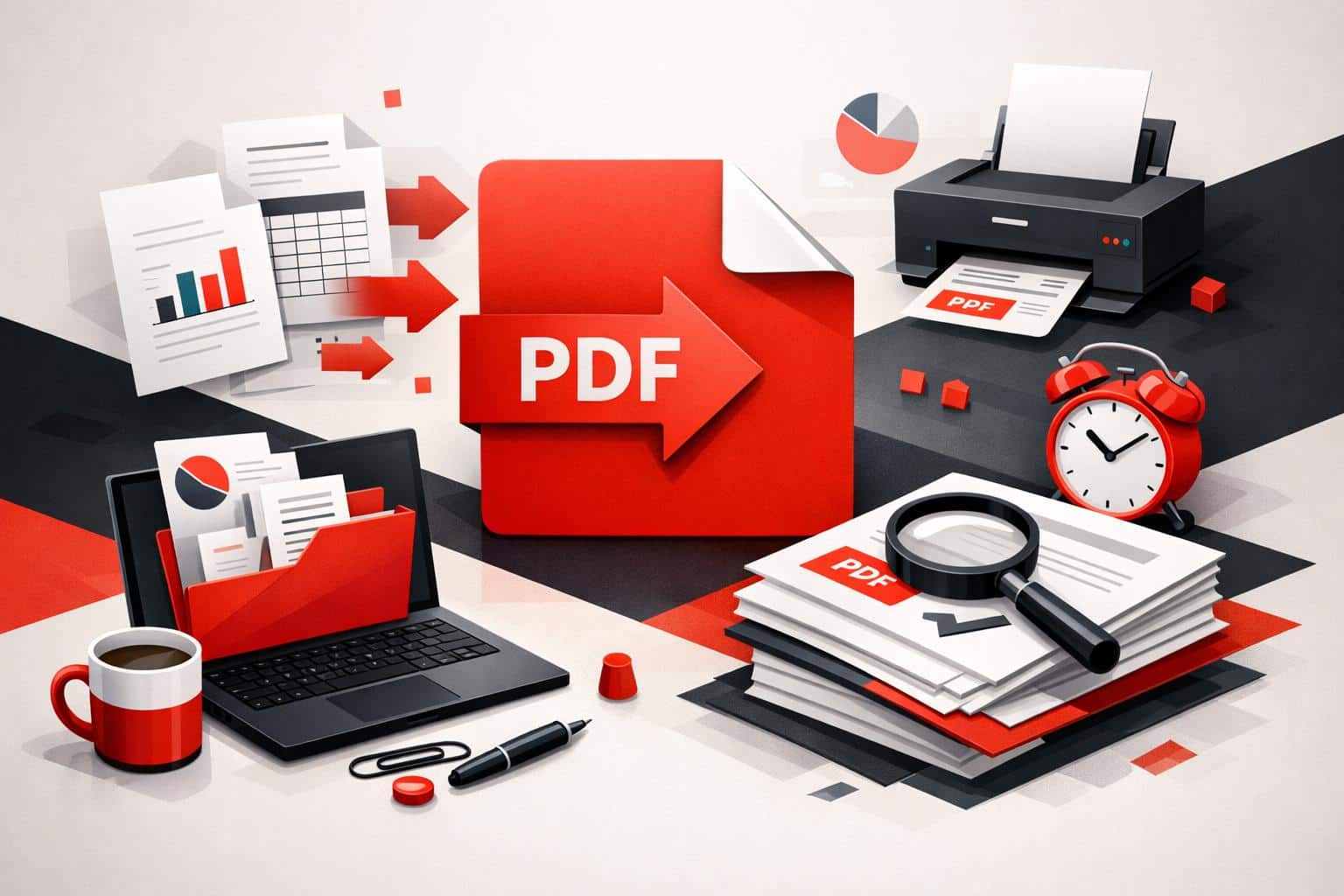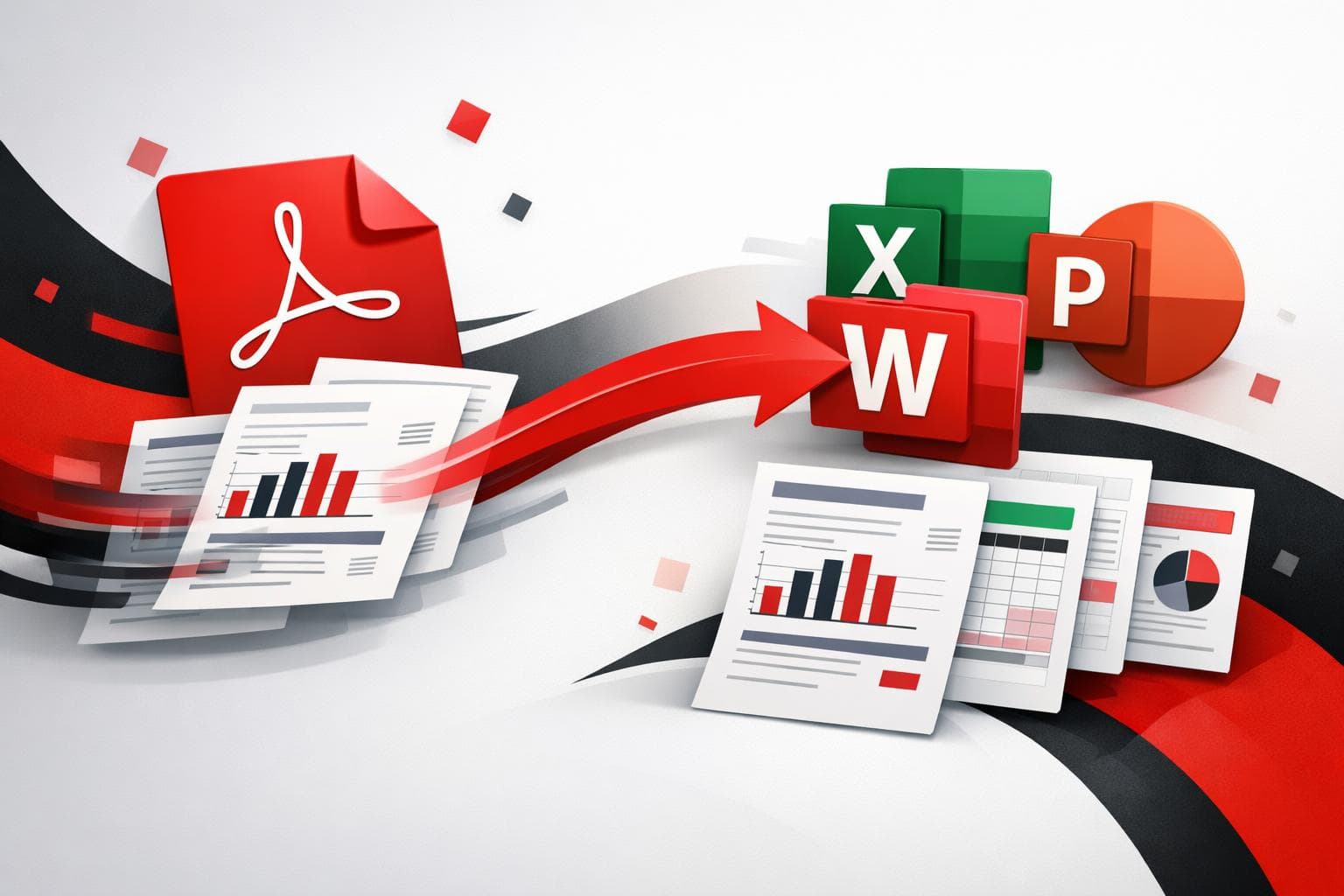
To edit a PDF, the fastest path is usually conversion into an Office file, Word for text edits, Excel for tables, or PowerPoint for slides, then finishing the job in the app that matches the content. iLovePDF provides that conversion in three routes, web, desktop, and mobile, with Premium options such as batch processing and OCR for scanned pages.
Why PDFs resist clean edits
A PDF is built to preserve a page exactly as it looks, not to preserve the underlying structure that editors rely on. That difference matters because Word and Excel expect reusable building blocks such as paragraphs, headings, rows, and cells, while many PDFs only contain positioned text and graphics.
Conversion tools try to reconstruct that structure from visual layout. Results depend on how the PDF was created, a digitally generated PDF with selectable text typically converts better than a scanned document that is basically an image.
A three step web conversion routine
For quick edits, a browser converter is often the most convenient option, no installation, no admin rights, and no waiting. iLovePDF’s online PDF to Office tools accept drag and drop uploads, and also support importing files from cloud storage such as Google Drive and Dropbox.
Quick workflow
- Choose the target tool, PDF to Word, PDF to Excel, or PDF to PowerPoint.
- Upload the PDF from the computer, or pull it from Google Drive or Dropbox.
- Convert, then download, or hand the output back to cloud storage for sharing.
According to iLovePDF, its PDF to Word, PDF to Excel, and PDF to PowerPoint converters are powered by Solid Documents. The tool pages list Solid Documents as the conversion engine behind these exports.
| Option | What it optimizes for | Best fit | Internet needed |
|---|---|---|---|
| Web tools | Speed and convenience | Occasional conversions and fast edits | Yes |
| Desktop app | Local processing and offline work | Confidential files, restricted networks, high volume | No for core conversions |
| Mobile app | Capture, annotate, sign, and share | Field work, quick approvals, lightweight edits | Often, especially for conversions |
A practical decision model that holds up in real teams is the RVM test, risk, volume, mobility. It forces the right tool choice before anyone uploads sensitive material just because it is faster.
- Risk, if the document is sensitive, prefer the desktop route that processes files locally.
- Volume, if many PDFs must be converted in one run, look for batch processing, iLovePDF positions this as a Premium capability on its conversion guide and pricing page.
- Mobility, if the work happens in hallways, on job sites, or between meetings, the mobile workflow typically wins.
For Premium features such as OCR and batch processing, iLovePDF publishes plan details on its pricing page.
How to pick the right Office output
Choosing the output format is not a cosmetic choice, it determines how much cleanup happens after conversion. A useful rule is to convert into the format that matches the document’s dominant structure, prose goes to Word, grids go to Excel, and page designed visuals go to PowerPoint.
Word for edits and rewrites
PDF to Word is the default when the goal is rewriting text, deleting sections, or adding new paragraphs while keeping a familiar page layout. If the PDF contains scanned pages, the tool indicates that OCR is required to extract editable text, and OCR is positioned as a Premium option.
Excel for tables and numbers
PDF to Excel is the right call when the value is in rows and columns, such as invoices, statements, or price lists. The converter offers layout choices, including placing content into one sheet or splitting it across multiple sheets, which can reduce manual rearranging after export.
PowerPoint for decks and visuals
PDF to PowerPoint is best when the PDF is already presentation shaped, and the goal is to reuse charts, tables, and images in an editable deck. It is often faster than rebuilding slides from scratch, especially when visual elements must stay aligned.
Concrete example, a finance analyst receives a monthly vendor summary as a PDF. The tables go through PDF to Excel for analysis, key charts then move into PowerPoint for a leadership update, and the narrative section converts to Word for revision.
A simple decision rule avoids most conversion frustration: if text can be highlighted and copied in the PDF viewer, standard conversion is usually enough, if it cannot, OCR is needed to turn image based text into editable content.
When local conversion is the safer bet
Teams dealing with regulated data, client contracts, or internal HR files often hit a policy wall with browser uploads. iLovePDF addresses that use case with iLovePDF Desktop, positioned as a Windows and Mac app that can run heavy PDF tasks offline while keeping processing on the local machine.
This route is also a practical choice in low connectivity environments, such as travel, job sites, or segmented corporate networks. It reduces the operational friction of cloud workflows without changing the basic idea, convert the PDF into an Office file, then edit in Office.
What a phone workflow is actually good at
A mobile converter is not just a smaller version of a web tool. The iLovePDF Mobile page positions the app around scanning, annotations, signing, and file organization, the tasks that happen when a laptop is not available.
It is especially useful for fast turnaround work, compressing a PDF for sending, adding markup during review, signing on the spot, or digitizing paperwork into PDFs. Conversion to Office can fit into that flow when edits are needed immediately and the source document is already on the device.
A quick safety check before uploading files
Online conversion is convenient, but it is still a data handling decision. iLovePDF’s own security and data protection page describes end to end encryption for files during processing, and states that files are automatically deleted within two hours after being processed.
For organizations with strict rules, the cleanest policy is binary: if the document contains regulated or highly confidential content, use local processing with the desktop app, otherwise a web converter is acceptable for speed. That rule is easy to enforce, and easy to audit.
For additional context on the full PDF to Office workflow described by the company, the iLovePDF guide How to convert PDF to Office summarizes the web, desktop, and mobile options in one place.