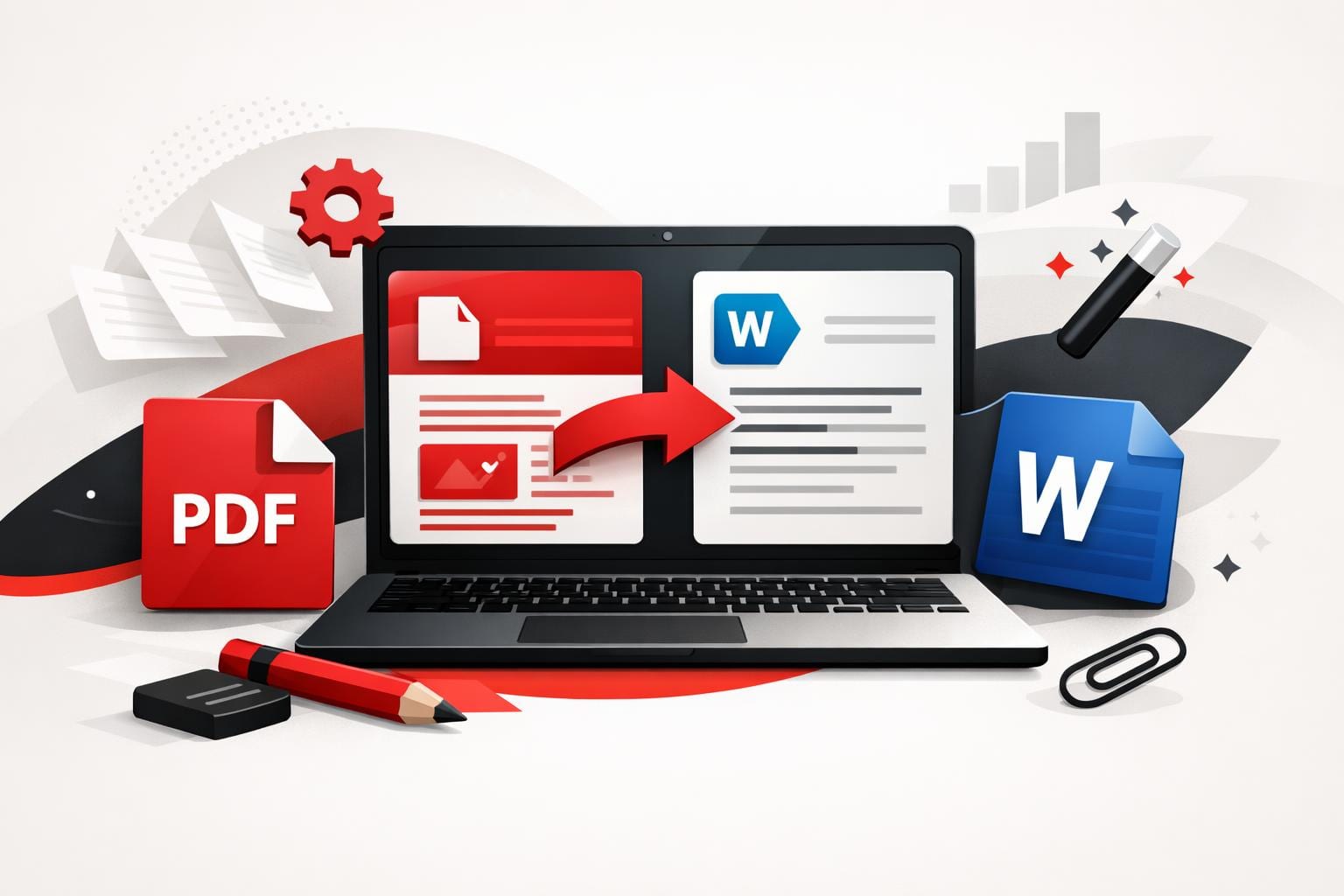
To turn a PDF into an editable Word file for free, use an online converter for quick changes, or a desktop app when the file should stay on the computer. If the PDF is a scan, OCR is needed to convert the picture of text into real, editable characters, and that step is often a paid add on.
Choosing a conversion route that fits
A PDF is designed to display consistently, a Word document is designed to be edited. Converting between the two is a reconstruction job, which means results depend on how the PDF was created and how complex the layout is.
- Text-based PDF, text can be selected with a cursor, standard conversion usually works well.
- Scanned PDF, text behaves like an image, OCR is required to make it editable.
- Layout-heavy PDF, lots of columns, tables, or positioned elements, expect cleanup in Word after conversion.
Decision rule, if the text in the PDF cannot be highlighted and copied, plan on OCR. If the file contains sensitive information and uploading is not acceptable, prefer an offline workflow.
| Approach | Best at | Typical tradeoff |
|---|---|---|
| Web converter | Quick, single file conversions from a browser, including imports from cloud storage | Requires uploading the document |
| Desktop converter | Keeping processing on the local machine, useful on restricted networks | Needs installation and local setup |
| OCR mode | Making scanned pages editable by detecting characters from images | Accuracy depends on scan quality and may require a Premium plan |
For comparison, Microsoft Word itself can also open many PDFs and attempt a conversion, which is convenient when Word is already available, but complex formatting can shift. See Microsoft’s guidance on opening PDFs in Word.
The fastest online conversion workflow
The browser option is built for speed, open the converter, upload a file, convert, download. iLovePDF offers a dedicated page for this workflow at PDF to Word.
Online steps that stay simple
- Open the PDF to Word tool in a browser.
- Select a PDF from the device, or import from Google Drive or Dropbox.
- If the file is not scanned, keep OCR off and proceed with the standard conversion.
- Run the conversion, then download the .DOCX file or save it back to cloud storage.
For text-first documents such as contracts, reports, and policies, conversion typically preserves most of the structure, making small edits faster than retyping.
Offline conversion when uploads are a problem
Offline conversion is the practical choice when a document cannot leave the machine, or when the network is unreliable. iLovePDF provides this route through iLovePDF Desktop for Windows and macOS.
Offline steps on desktop
- Install iLovePDF Desktop on Windows or macOS.
- Open the PDF from the app, or drag and drop it into the reader.
- Choose the PDF to Word conversion tool, then start the conversion.
- Open the output folder to access the converted Word document.
According to iLovePDF, the desktop app is designed to offer the same toolbox as the web version, while processing files locally for privacy focused workflows.
How to handle scanned PDFs with OCR
OCR, short for Optical Character Recognition, detects letters inside an image and recreates them as selectable text. That is the difference between a Word file that can be edited normally and one that behaves like a pasted screenshot.
When OCR is necessary
- The PDF came from a scanner, fax, or a photo based workflow.
- Words cannot be selected, copied, or searched in a PDF viewer.
- The goal is real editing, not just copying small snippets.
How OCR typically works in practice
- In the web tool, scanned content triggers an OCR choice, OCR is labeled as a Premium option on the converter page.
- On desktop, scanned pages can be detected and routed through OCR depending on the product and plan.
Practical example, a scanned lease agreement needs an updated tenant name and a corrected date. Run OCR, convert to Word, make the two edits in seconds, then export back to PDF for sharing.
OCR quality follows input quality. Sharp scans, clean contrast, and minimal handwriting improve results, while blurry photos and heavy markup increase the time spent fixing the output.
What to expect on security and file deletion
For any online conversion, the key question is what happens to the file after upload. According to iLovePDF’s Security and data protection documentation, files are protected with encryption, and processed files are automatically deleted within two hours, with an option for manual deletion from the download screen.
Security posture still depends on context. For regulated data, internal policies usually matter more than tool features, so an offline workflow, or an approved enterprise converter, is often the safer decision even when the online option is technically secure.