
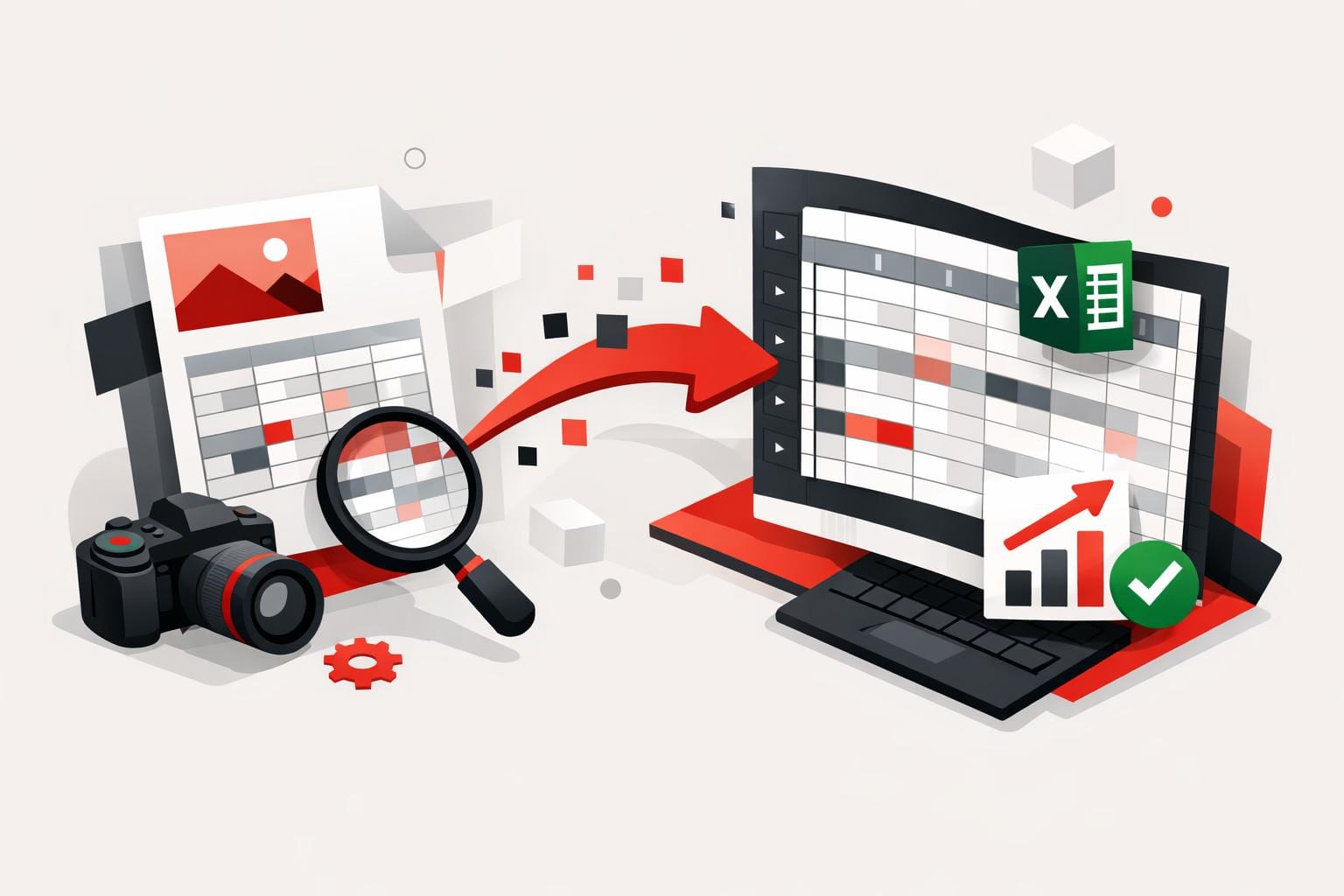
A JPG image can be turned into an editable Excel sheet by converting the image to a PDF first, then converting that PDF to Excel with OCR enabled when the content is scanned or photographed. This workflow is designed to preserve table structure and reduce copy and paste cleanup across web, desktop, and mobile.
Convert a JPG into Excel in two steps
Most online converters handle “image straight to Excel” poorly because spreadsheets expect structured text, not pixels. A reliable route is to wrap the image in a PDF first, then run a PDF to Excel conversion that can apply OCR when needed.
- Convert the image using JPG to PDF.
- Open the resulting file in PDF to Excel and choose an OCR option if the document is not selectable text.
- Select a layout mode, for example one sheet for a single table, or multiple sheets when pages should become separate tabs.
Practical example, a photo of a supplier’s price table taken in a meeting can become a spreadsheet that supports sorting and filtering in minutes, instead of an hour of manual reentry.
When OCR turns a screenshot into real cells
OCR, short for Optical Character Recognition, is the step that converts pixels into characters so a spreadsheet can store them as editable values. Without OCR, conversion tools typically succeed only when the PDF already contains selectable text, such as exports from business software.
Decision rule, if text cannot be highlighted or copied in a PDF viewer, OCR is the safer choice. According to iLovePDF, the OCR mode in its PDF to Excel tool is labeled as a premium option, and it is intended for scanned pages and non selectable text.
- Accuracy improves because characters are recognized rather than guessed from layout alone.
- Formatting is more likely to keep table rows, columns, and common symbols aligned.
- Language support matters for invoices and forms, iLovePDF lists OCR support for English, Danish, Dutch, Finnish, French, German, Italian, Norwegian, Polish, Portuguese, Russian, Spanish, Swedish, and Turkish.
Pick the platform that fits the workflow
Conversion quality is only half the problem, the other half is where the file lives and how often the task repeats. The company offers web tools, plus dedicated desktop and mobile apps, each matching a different working style.
| Option | Best for | Tradeoff to expect |
|---|---|---|
| Web tools | Fast, occasional conversions from any browser | Requires upload, OCR features may be plan dependent |
| Desktop app | Repeat work, local file handling, steadier batch style routines | Install required, and features can vary by plan |
| Mobile app | On the go capture, scan, and immediate conversion | Smaller screens make cleanup and verification slower |
A simple market classification helps choose quickly, the AFR model. Accuracy depends on OCR and image quality, Friction depends on where the file is stored and how many steps are needed, Risk depends on whether the document is sensitive and whether uploads are allowed.
More than conversion, the adjacent tools that matter
JPG to Excel is usually a one off fix inside a larger document workflow. iLovePDF markets a broader suite of tools that typically surround the conversion task.
- Organize with merge, split, extract, and page rearranging.
- Optimize with compression and OCR for searchable text.
- Convert between PDF and common Office and image formats, and specialized targets such as PDF/A.
- Edit with page numbers, watermarks, and basic content edits.
- Sign using e signature features when the output needs approvals, not just cells.
Security basics for document uploads
For many teams, the real blocker is not conversion speed, it is compliance. The company’s security documentation says files are protected with end to end encryption during processing and automatically deleted within two hours after being processed, with an option to manually delete from the download screen. It also describes GDPR compliance and ISO 27001 certification, and notes an exception that signed documents may be retained for up to five years to meet legal requirements.
For details, see iLovePDF Security and data protection. For highly sensitive material, the safest operational rule is to avoid uploads entirely and use an approved internal toolchain or a vetted desktop workflow under corporate policy.
If mobile conversion is part of the workflow, the iOS listing for the app provides additional platform specific disclosures via iLovePDF on the App Store.