
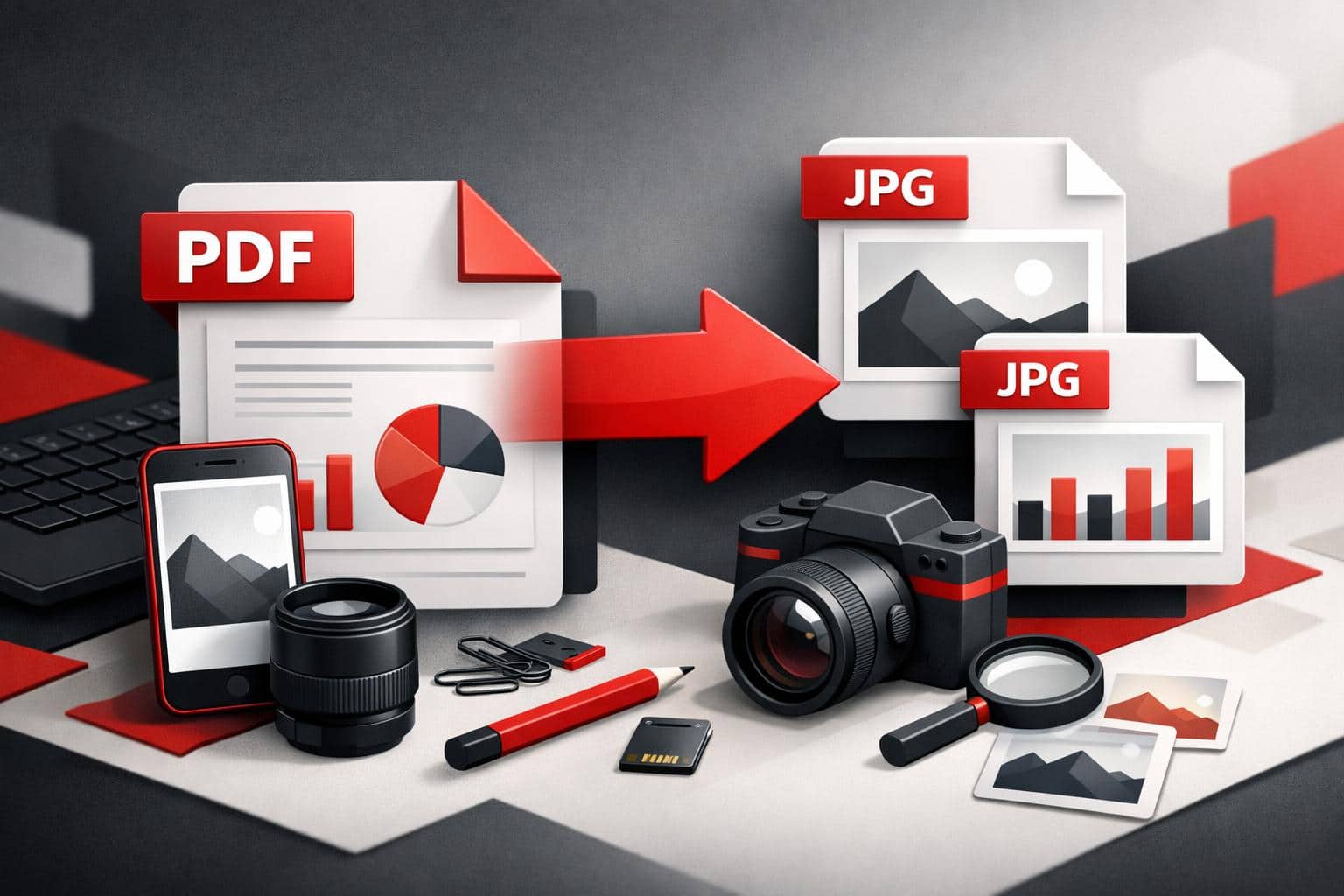
To turn a PDF into JPG images quickly, use the iLovePDF PDF to JPG tool and choose the output that matches the goal, full page images or extracted embedded pictures. The key decision is simple, convert pages when layout matters, extract images when individual assets matter.
Two output modes and when each wins
The tool offers two distinct results, and choosing the wrong one creates extra work later. One mode renders each PDF page as an image, the other pulls out the images that were already embedded inside the PDF.
- Page to JPG, best for a pixel accurate snapshot of the page layout, including fonts, spacing, and annotations.
- Extract images, best for retrieving reusable assets such as product photos, charts, and logos without turning every page into a screenshot.
Decision rule: if the JPG must look exactly like the PDF page when shared or posted, choose Page to JPG. If the goal is to reuse individual visuals in a slide deck, CMS, or image editor, choose Extract images.
Image quality can typically be adjusted, for example a normal setting for speed and a high setting when fine text or detailed diagrams must remain readable.
Practical example: a marketing team receives a 40 page PDF catalog and only needs the product photos for an ecommerce upload. Extract images is usually the cleanest path, Page to JPG would generate 40 page images that still need cropping.
A fast online workflow that stays simple
For most one off jobs, the web flow is the shortest route. Open the PDF to JPG page, add a file, choose the output mode, convert, then download the results.
- Upload a PDF from a computer, or import from cloud storage when available.
- Select Page to JPG or Extract images, then pick an image quality level if offered.
- Convert, then download the generated JPG files.
This approach is designed for speed, but it still involves uploading the document to a remote service, which can be a deal breaker for restricted files.
Web vs desktop vs mobile in one view
Platform choice is less about features and more about operating constraints, such as offline work, bulk processing, or company rules for sensitive documents. A quick way to decide is the three part lens below.
- Speed, how fast the job completes for the file sizes involved.
- Control, how much the workflow depends on browser limits and network conditions.
- Compliance, whether the document can be uploaded to a third party service at all.
| Option | Where it runs | Best fit | Typical tradeoff |
|---|---|---|---|
| Web tool | Browser | Quick conversions and sharing | Depends on upload speed and policy limits |
| Desktop app | Local computer | Offline work, heavier batches, tighter local handling | Requires installation and device management |
| Mobile app | Phone or tablet | On the go conversion and quick extraction | Small screen workflows and mobile storage constraints |
For offline or more controlled handling, the company promotes iLovePDF Desktop for Windows and macOS. For on the move work, iLovePDF Mobile covers similar conversion choices from a phone.
Security basics that matter before uploading
For any online converter, the risk question is not whether conversion works, it is what happens to the file during processing and afterward. According to iLovePDF security and data protection documentation, files are protected with encryption during transfer and processing, and processed files are automatically deleted within two hours.
That is useful for routine documents, but highly sensitive files still require a policy check. When a document cannot leave a device due to contractual or regulatory rules, a desktop workflow is typically the safer operational choice.