
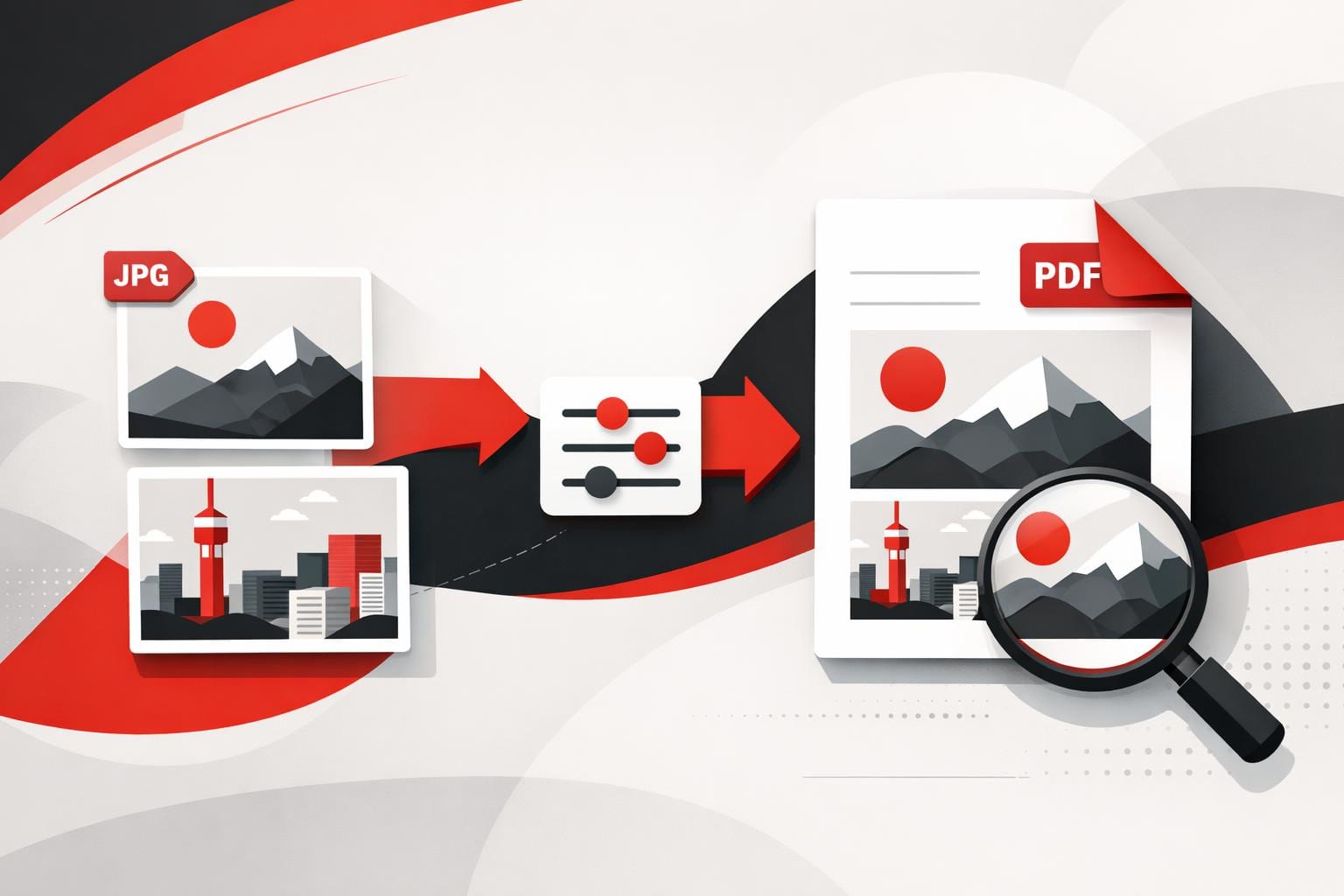
To convert a JPG into a clean, shareable PDF, the fastest path is an online converter that turns each image into a PDF page and optionally merges multiple photos into one file. PDF is usually the right output when the file must print predictably, look identical on any device, or travel as a multi-page document.
Why PDFs Become the Default for Sharing
PDF has become the unofficial “paperless paper” because it is designed to preserve layout. Fonts, spacing, and page breaks stay consistent across operating systems and apps, which is exactly what teams want when exchanging contracts, invoices, reports, and forms.
A JPG is a picture. A PDF is a document container, it can hold many pages and mix text, images, and vector elements. That difference is why “send it as a PDF” is common in business workflows.
JPG and PDF Are Built for Different Jobs
Neither format is “better” in general. Each is optimized for a different delivery goal, and that goal determines what users experience when the file is opened, printed, or uploaded.
| What matters | JPG | |
|---|---|---|
| Primary purpose | Fast photo sharing and web display | Reliable document viewing, printing, and archiving |
| Layout consistency | Depends on where the image is placed | Designed to keep pages stable across devices |
| Multi-page packaging | Not native, each image is a separate file | Native, one file can contain many pages |
| Print readiness | Often requires manual sizing and margins | Page size and margins are first-class settings |
| Searchable text | No, it is pixels | Yes if the PDF contains text, or after OCR |
| Typical file size behavior | Usually small for a single photo | Efficient for multi-page sharing, can grow with high-resolution images |
A Simple Rule That Prevents Format Mistakes
Decision rule: if the recipient expects pages, printing, or a single attachment containing multiple images, choose PDF. If the goal is a single image for a website, chat, or quick preview, keep it as JPG.
A practical way to choose is the SPF test, a three-factor mini-model for file decisions.
- Speed: pick JPG when load time and lightweight sharing dominate.
- Print: pick PDF when page size, margins, and predictable output matter.
- Filing: pick PDF when many images must travel as one organized document.
A Tidy Conversion Workflow That Scales
Many converters do the same core job: import images, map each image to a page, and export a PDF. The details that matter are page size, orientation, margins, and whether multiple images are merged into a single file.
Steps that match what most tools expose
- Open a JPG to PDF converter, for example the iLovePDF JPG to PDF tool.
- Upload one image or a batch of images.
- Set page orientation to Portrait or Landscape.
- Pick a page size that matches the destination, such as Fit, A4, or US Letter.
- Choose margins, typically No margin, Small, or Big.
- If a single combined file is needed, enable merging so the output is one multi-page PDF.
- Convert, then download the result.
Concrete example that saves time
A finance team needs one attachment for an expense report. Eight phone photos of receipts can be uploaded together, set to US Letter with small margins, merged into one PDF, then emailed as a single file instead of eight separate JPGs.
When the goal is selectable text
Converting a photo into a PDF does not automatically create real text, it mostly changes the container. For searchable text, run OCR after conversion using an OCR tool such as iLovePDF OCR PDF, which attempts to recognize characters and embed a text layer.
Large batches and repetitive work
When volume becomes the problem, the differentiator is processing limits and batch handling. According to the company’s pricing page, Premium is listed at $9 billed monthly or $60 billed annually, equivalent to $5 per month, as of March 28, 2026, and it is positioned for unlimited processing and broader access across web, desktop, and mobile.
For an alternative converter option, Adobe Acrobat’s online JPG to PDF tool also provides browser-based conversion.
The Privacy Checks Worth Doing First
Online conversion is convenient, but it is still an upload. Before sending anything confidential, check the service’s retention window, encryption claims, account controls, and whether local processing is available.
- Retention: the company states that files are deleted within two hours after processing, and signed documents can be retained for up to five years for legal reasons.
- Encryption and access controls: the company describes HTTPS protection and end-to-end encryption, plus account features such as two-factor authentication.
These details are outlined on the company’s Security and data protection page.
Decision rule for sensitive files: if the document contains regulated or high-risk data, prefer local processing over a browser upload when possible. The company markets local processing via its Desktop app for workflows that prioritize keeping files on the device.