AI Chat & Independent PDF Tools Guide

iLovePDF PDF

  • Convert Photos to PDF on Any Device

    Convert Photos to PDF on Any Device

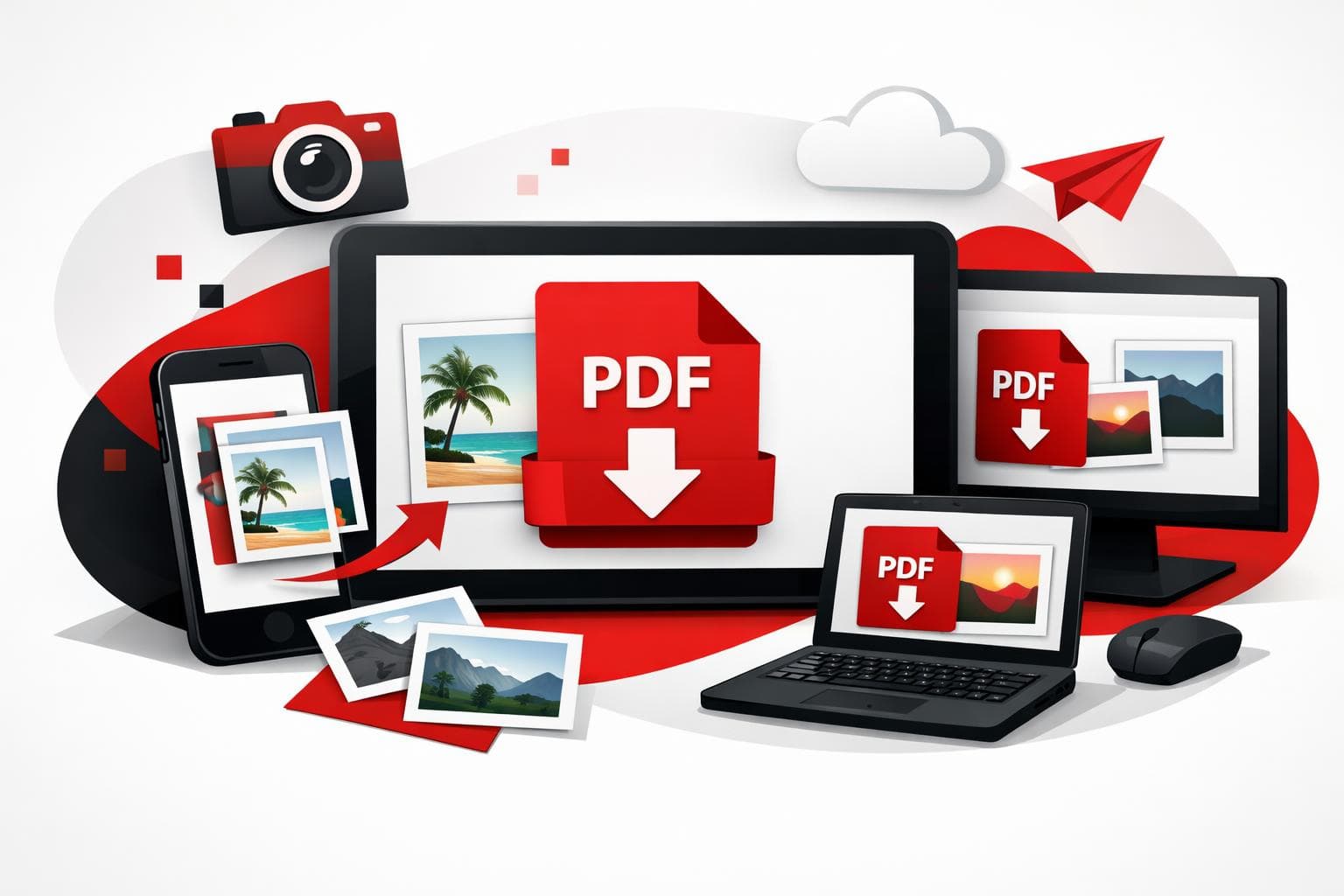
    To turn one photo, or a whole batch, into a shareable PDF, pick a path based on where the images live: browser for speed, phone for capture, desktop for offline control. iLovePDF offers a web converter, mobile apps, and a desktop app that all produce the same outcome, a PDF that packages images into pages.

    Online conversion with browser level speed

    The browser option is the quickest way to package images into a single file that prints cleanly and uploads easily. It is also the simplest option for occasional work because there is nothing to install.

    Start with the JPG to PDF tool. Images can be pulled from a device, and the interface also shows imports from Google Drive and Dropbox.

    • Step 1 Upload one image, or select multiple images for a batch.
    • Step 2 Set page orientation, page size, and margins to match the destination, for example A4 for international forms, or US Letter for US offices.
    • Step 3 If the goal is a single file, enable the option to merge all images into one PDF.
    • Step 4 Convert, then download the PDF.

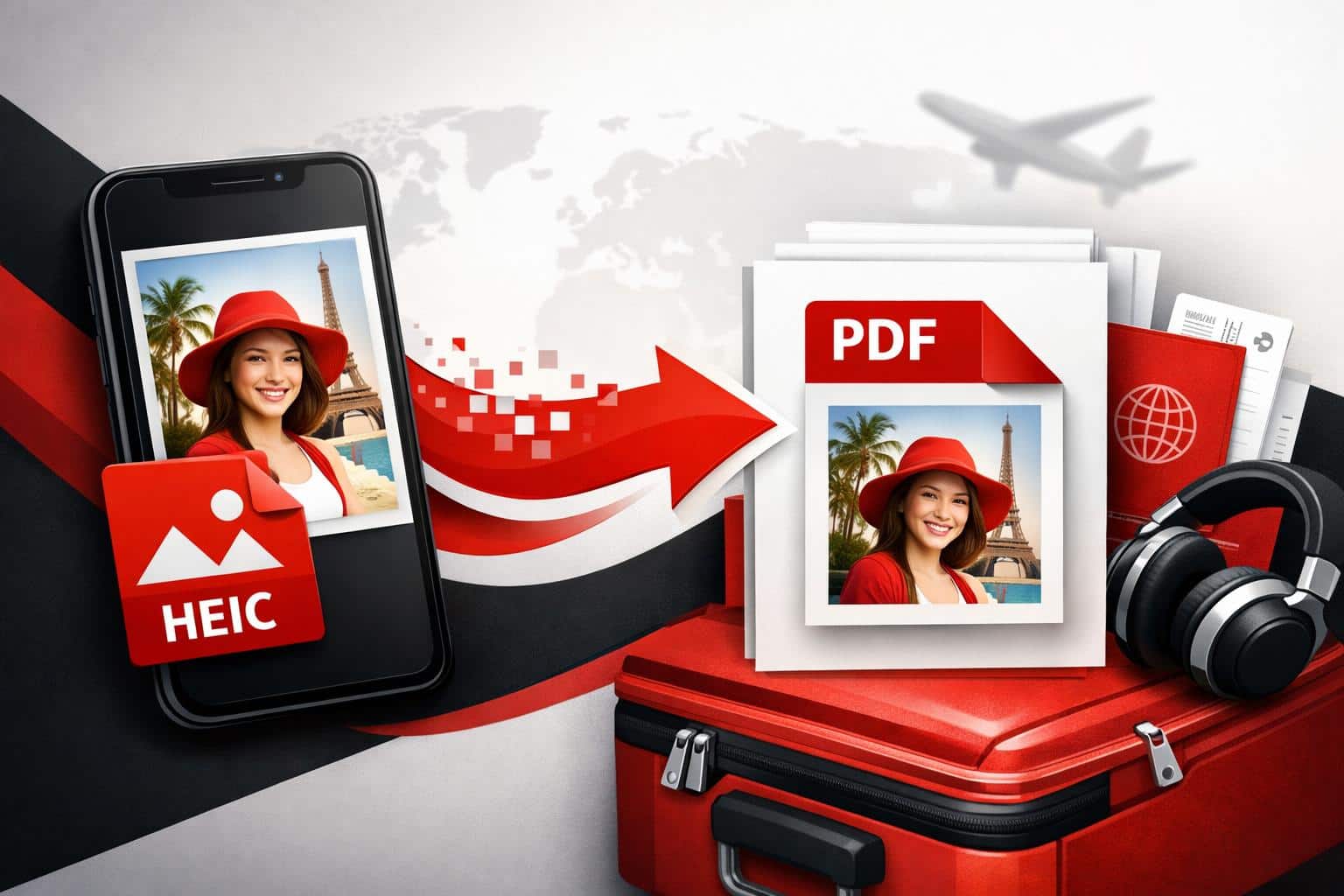
    Working with iPhone photos in HEIC format often adds friction on Windows PCs. The company documents a HEIC workflow and common compatibility issues in its guide at How to convert HEIC to PDF, which is useful when a photo opens fine on Apple devices but fails in a desktop upload portal.

    Mobile conversion when the camera is the source

    On mobile, the value is immediacy. A phone can capture, convert, and share a PDF before a laptop even boots, which matters for receipts, forms, and field work.

    Use the iLovePDF mobile apps, then install from the iOS App Store listing or from Google Play.

    • Step 1 Open the app, choose the image to PDF converter, then select photos from storage or capture new ones.
    • Step 2 Choose page sizing and margins so the PDF matches the way it will be viewed or printed.
    • Step 3 Convert and save, then share the PDF through email or messaging.

    Practical example A job application portal asks for one PDF, not 12 separate photos. A phone can snap each page of a paper certificate, convert the set into one PDF, then email it as a single attachment without touching a scanner.

    Offline conversion for maximum local control

    Desktop conversion is the right fit when internet access is unreliable, or when documents are sensitive enough that uploading feels like an unnecessary risk. According to iLovePDF, the desktop app processes files directly on the device, which keeps the workflow local. See iLovePDF Desktop.

    • Step 1 Install and open the desktop app, then select the image to PDF tool.
    • Step 2 Add images from local storage, set page layout options, then run the conversion.
    • Step 3 Save the resulting PDF to a local folder, ready for upload when connectivity returns.

    Desktop tools also shine for repetitive workloads, such as converting the same form photos every week, or processing a folder of images in a single session.

    A simple framework for choosing the best method

    PDF conversion looks like a commodity, but the tradeoffs are consistent across the market. The cleanest decision comes from a three part lens.

    • Convenience How fast the conversion happens in the moment.
    • Control How much of the workflow stays on the device versus in a browser upload.
    • Compliance Whether the method supports internal rules for handling personal or regulated documents.

    Decision rule If the file is confidential, or internet access is uncertain, use the desktop app. Otherwise, use the browser for quick one off conversions, and use the phone when the camera is the starting point.

    Method Best for Internet needed Where processing happens Batch to one PDF
    Web tool Fast conversion from a laptop or desktop Yes Uploaded, processed remotely Yes
    Mobile app Converting right after taking photos Usually yes App workflow, may use cloud features Yes
    Desktop app Sensitive files and offline work No Local device Yes

    What the service says about file safety

    File conversion tools sit in a trust sensitive category because they often require an upload. According to the company security documentation, transfers use encrypted connections, files are removed automatically within two hours after processing, and the service offers an option to delete files manually from the download screen. See iLovePDF Security.

    For teams, the practical takeaway is simple. Treat any upload based converter as suitable for everyday documents, and default to local processing when handling contracts, IDs, HR documents, or anything covered by internal retention rules.

    Extra tools that solve the next PDF problem

    Photo to PDF is usually the first step, then the next bottleneck shows up immediately, size limits, editing needs, or scanning paper into a clean file.

    • Compress Reduce file size for upload portals using Compress PDF.
    • Edit Add an image or annotate an existing PDF with Edit PDF.
    • Convert back Turn pages into images using PDF to JPG.
    • Scan Capture paper documents to a PDF via QR flow using Scan to PDF.
  • Convert PNG Images to PDF for Easy Sharing

    Convert PNG Images to PDF for Easy Sharing

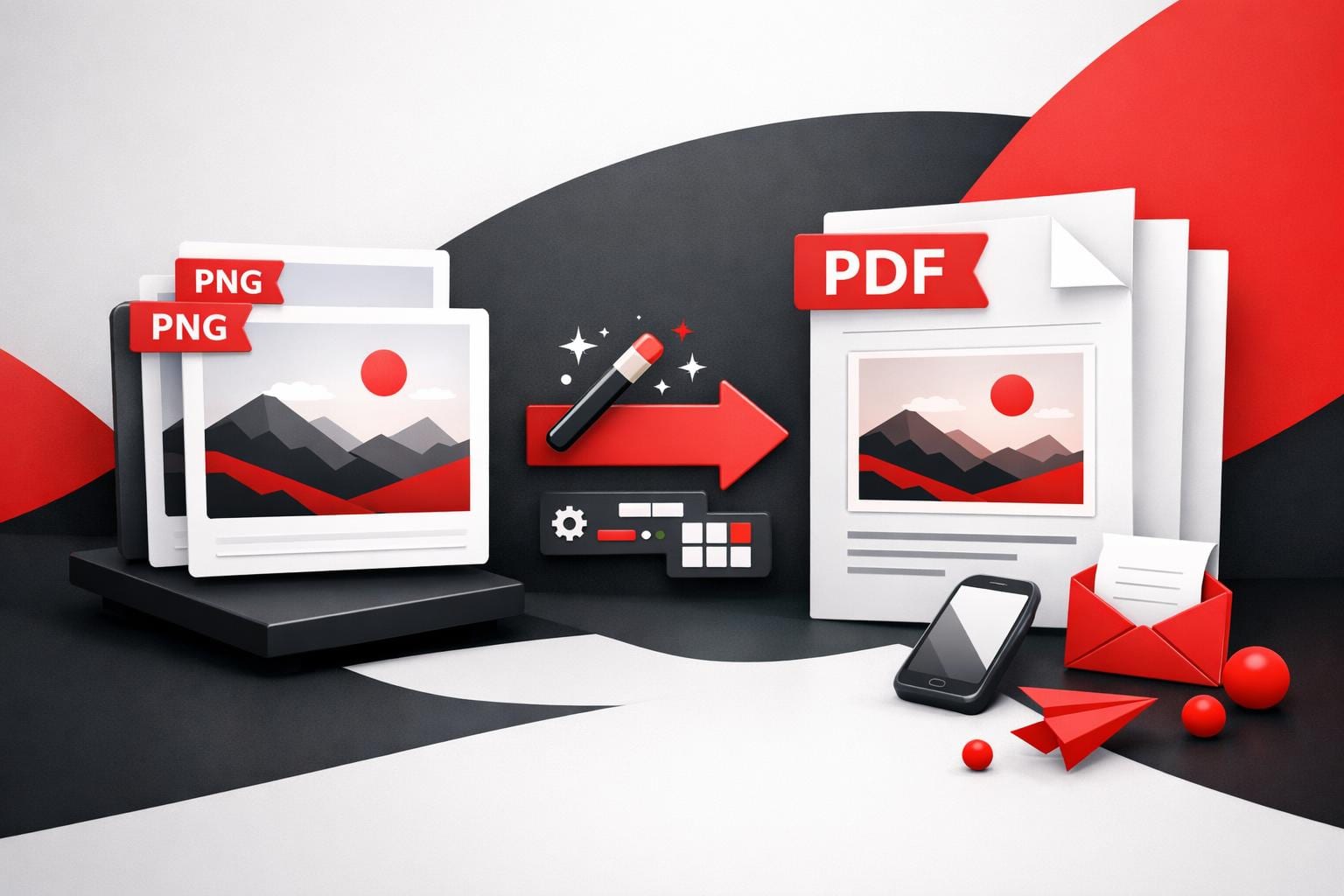
    To convert a PNG to a PDF online, upload the image to an image to PDF converter, choose page size and layout settings, then export the PDF. The main payoff is simpler sharing and printing, plus the option to apply PDF security controls when the file contains sensitive content.

    Why a PDF can be the smarter wrapper

    PNG, short for Portable Network Graphics, is a raster image format designed for crisp visuals, lossless compression, and transparency, which is why it shows up everywhere in UI mockups and web graphics. The catch is that PNG is still “just an image”, so recipients often treat it like a photo instead of a document, which can mean awkward printing, inconsistent page sizing, and messy email threads with multiple attachments.

    A PDF behaves more like a universal container. It typically opens the same way across devices, it is easier to store as a single multi page file, and it fits standard document workflows like page based review, printing, and archiving, including PDF/A for long term preservation.

    • Compatibility, one file that behaves like a document.
    • Control, predictable pages, margins, and orientation for printing.
    • Compliance, clearer paths to password protection and retention policies.

    How to convert PNG to PDF online

    iLovePDF routes PNG conversions through its Image to PDF workflow, which is presented on the JPG to PDF tool page. Start with the tool, add the PNG, confirm layout settings, then generate the PDF.

    Tool entry point: iLovePDF JPG to PDF.

    • Step 1 Upload the PNG, or drag and drop it into the tool.
    • Step 2 Pick Portrait or Landscape, based on how the image should sit on the page.
    • Step 3 Choose page size, typically Fit, A4, or US Letter.
    • Step 4 Set margins, then convert and download the resulting PDF.

    Decision rule: if the PDF is meant for viewing and exact pixel framing matters, select Fit. If the PDF is meant for printing or signing, select A4 or US Letter and use a small margin to reduce the risk of edge cropping by printers.

    Practical example: a designer needs stakeholder sign off on 12 transparent PNG UI screens. Export each screen as a PNG, upload all 12 images, enable merging into one PDF, set page size to Fit, then send a single PDF that reviewers can annotate and print without dealing with separate image files.

    How many images can be converted at once

    Batch conversion is supported, and the effective limits depend on the account tier. The pricing page lists Image to PDF limits for free and paid plans, and iLovePDF’s PNG specific guide describes the same conversion flow and the typical free versus Premium batch sizing. For details, see iLovePDF Pricing and the guide How to convert PNG images to PDF online.

    Plan Images per batch Total upload size per batch
    Free Up to 20 Up to 40 MB
    Premium Up to 80 Up to 4 GB

    The same Image to PDF converter is positioned to handle more than PNG. Supported inputs commonly include PNG, JPEG, TIFF, SVG, BMP, IMG, RAW, HEIC, and WebP, which matters when a workflow mixes screenshots, camera photos, and exported design assets.

    Security and retention, what to check before uploading

    Any online converter is a data transfer decision. According to iLovePDF, uploads are protected with end to end encryption, and files processed by the platform are automatically deleted within two hours, with additional detail in its security documentation. Reference: iLovePDF Security and Data Protection.

    For sensitive documents, a PDF can also be locked after conversion. iLovePDF provides a dedicated password encryption tool at Protect PDF, and a step by step explanation in How to add a password to a PDF.

    If an organization needs formal assurance, iLovePDF also publishes an ISO/IEC 27001 certificate PDF. Reference: ISO/IEC 27001 certificate.

  • Converting JPG to PDF Without Losing Quality

    Converting JPG to PDF Without Losing Quality

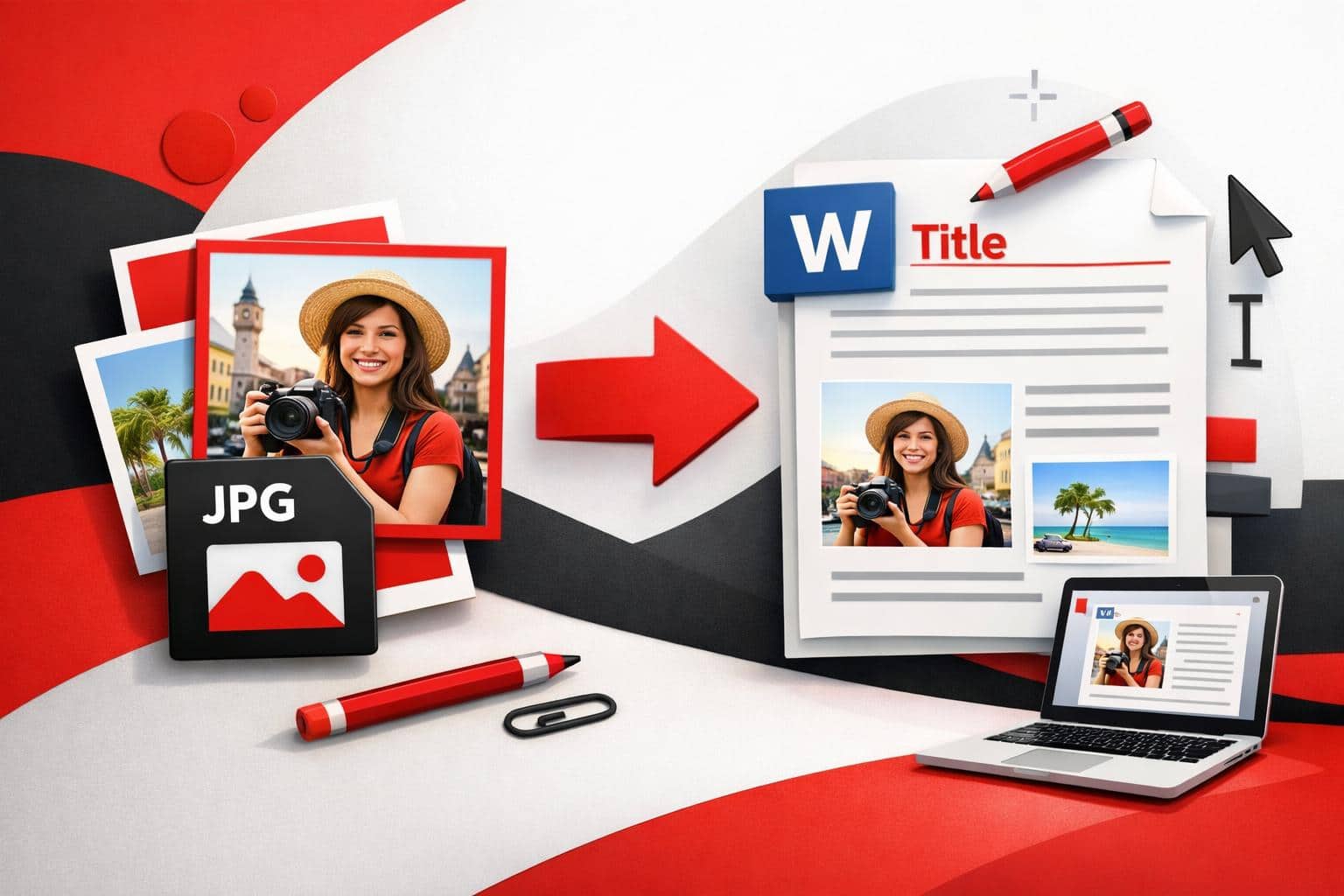
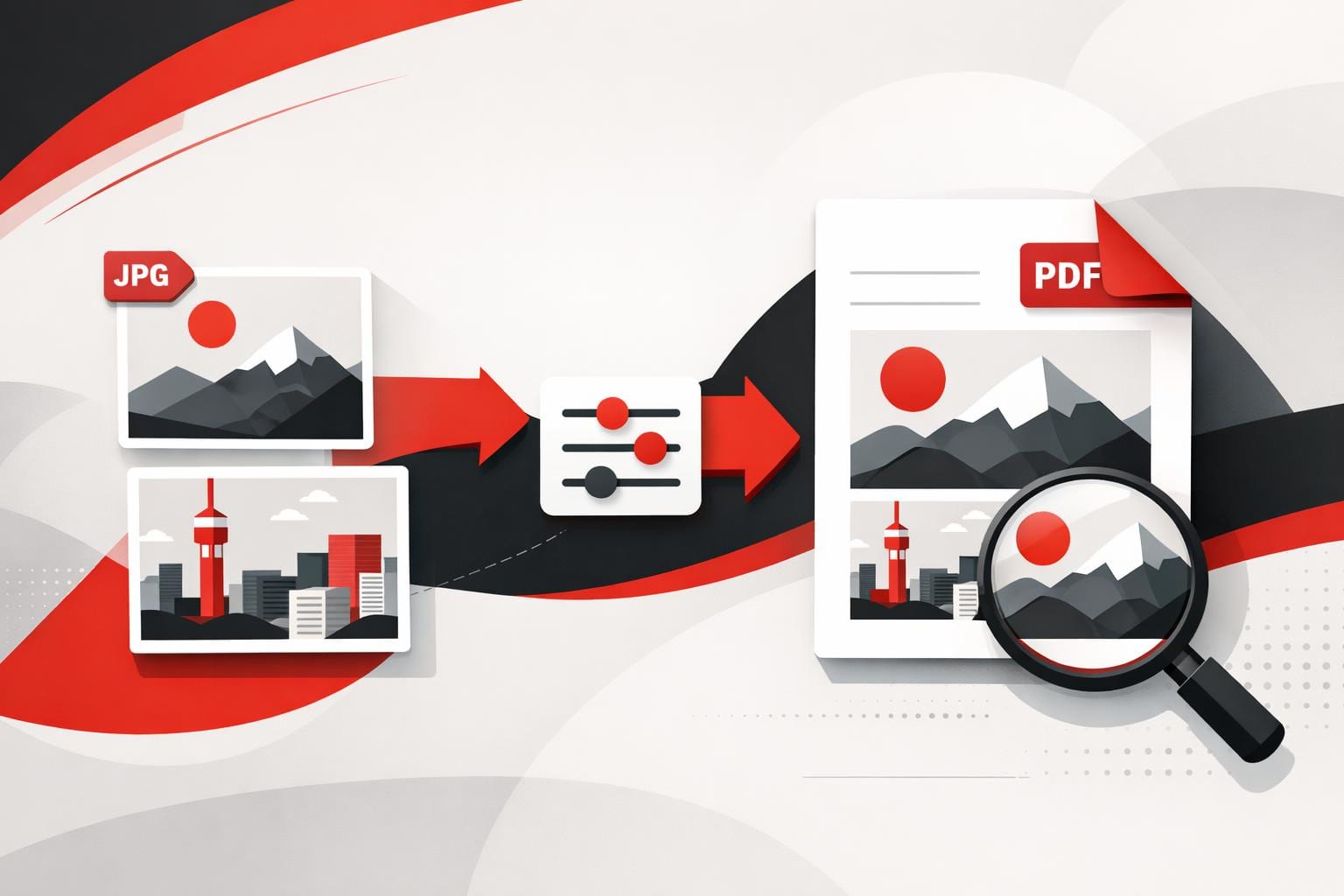
    To convert a JPG into a clean, shareable PDF, the fastest path is an online converter that turns each image into a PDF page and optionally merges multiple photos into one file. PDF is usually the right output when the file must print predictably, look identical on any device, or travel as a multi-page document.

    Why PDFs Become the Default for Sharing

    PDF has become the unofficial “paperless paper” because it is designed to preserve layout. Fonts, spacing, and page breaks stay consistent across operating systems and apps, which is exactly what teams want when exchanging contracts, invoices, reports, and forms.

    A JPG is a picture. A PDF is a document container, it can hold many pages and mix text, images, and vector elements. That difference is why “send it as a PDF” is common in business workflows.

    JPG and PDF Are Built for Different Jobs

    Neither format is “better” in general. Each is optimized for a different delivery goal, and that goal determines what users experience when the file is opened, printed, or uploaded.

    What matters JPG PDF
    Primary purpose Fast photo sharing and web display Reliable document viewing, printing, and archiving
    Layout consistency Depends on where the image is placed Designed to keep pages stable across devices
    Multi-page packaging Not native, each image is a separate file Native, one file can contain many pages
    Print readiness Often requires manual sizing and margins Page size and margins are first-class settings
    Searchable text No, it is pixels Yes if the PDF contains text, or after OCR
    Typical file size behavior Usually small for a single photo Efficient for multi-page sharing, can grow with high-resolution images

    A Simple Rule That Prevents Format Mistakes

    Decision rule: if the recipient expects pages, printing, or a single attachment containing multiple images, choose PDF. If the goal is a single image for a website, chat, or quick preview, keep it as JPG.

    A practical way to choose is the SPF test, a three-factor mini-model for file decisions.

    • Speed: pick JPG when load time and lightweight sharing dominate.
    • Print: pick PDF when page size, margins, and predictable output matter.
    • Filing: pick PDF when many images must travel as one organized document.

    A Tidy Conversion Workflow That Scales

    Many converters do the same core job: import images, map each image to a page, and export a PDF. The details that matter are page size, orientation, margins, and whether multiple images are merged into a single file.

    Steps that match what most tools expose

    • Open a JPG to PDF converter, for example the iLovePDF JPG to PDF tool.
    • Upload one image or a batch of images.
    • Set page orientation to Portrait or Landscape.
    • Pick a page size that matches the destination, such as Fit, A4, or US Letter.
    • Choose margins, typically No margin, Small, or Big.
    • If a single combined file is needed, enable merging so the output is one multi-page PDF.
    • Convert, then download the result.

    Concrete example that saves time

    A finance team needs one attachment for an expense report. Eight phone photos of receipts can be uploaded together, set to US Letter with small margins, merged into one PDF, then emailed as a single file instead of eight separate JPGs.

    When the goal is selectable text

    Converting a photo into a PDF does not automatically create real text, it mostly changes the container. For searchable text, run OCR after conversion using an OCR tool such as iLovePDF OCR PDF, which attempts to recognize characters and embed a text layer.

    Large batches and repetitive work

    When volume becomes the problem, the differentiator is processing limits and batch handling. According to the company’s pricing page, Premium is listed at $9 billed monthly or $60 billed annually, equivalent to $5 per month, as of March 28, 2026, and it is positioned for unlimited processing and broader access across web, desktop, and mobile.

    For an alternative converter option, Adobe Acrobat’s online JPG to PDF tool also provides browser-based conversion.

    The Privacy Checks Worth Doing First

    Online conversion is convenient, but it is still an upload. Before sending anything confidential, check the service’s retention window, encryption claims, account controls, and whether local processing is available.

    • Retention: the company states that files are deleted within two hours after processing, and signed documents can be retained for up to five years for legal reasons.
    • Encryption and access controls: the company describes HTTPS protection and end-to-end encryption, plus account features such as two-factor authentication.

    These details are outlined on the company’s Security and data protection page.

    Decision rule for sensitive files: if the document contains regulated or high-risk data, prefer local processing over a browser upload when possible. The company markets local processing via its Desktop app for workflows that prioritize keeping files on the device.